Mainnet account login URL: https://www.bybit.nl/app/user/security
Testnet account login URL: https://testnet.bybit.nl/app/user/security
Important Information:
1) It is highly recommended that a copy of your Recovery Key Phrase is stored securely. RKP is needed when you attempt to bind into a new Google Authenticator.
2) To ensure maximum account and asset security, Bybit (powered by SATOS) urges all traders to have their 2FA binded to their Google Authenticator at all times.
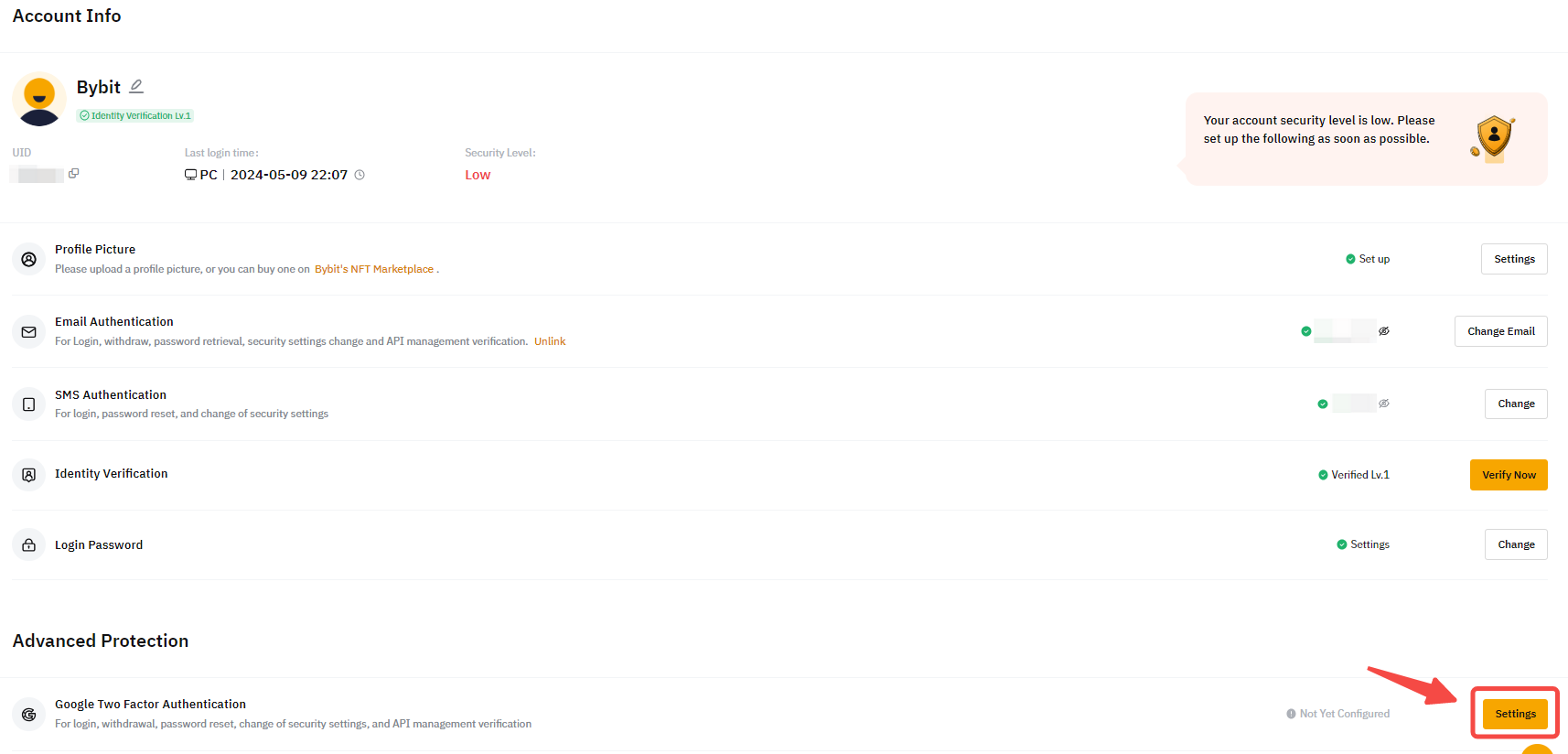
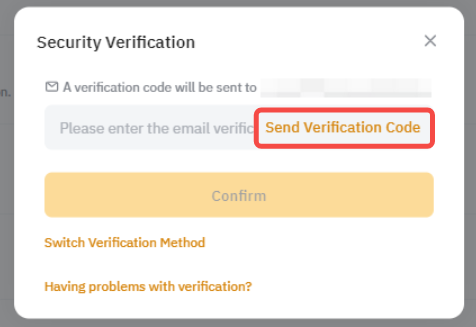
Step 1: Click on the link above to enter your account's security settings page. Perform a login if prompted. Click on the Settings button as shown below.
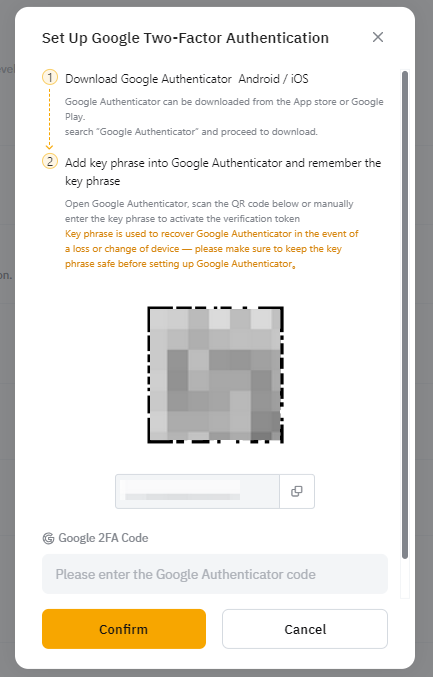
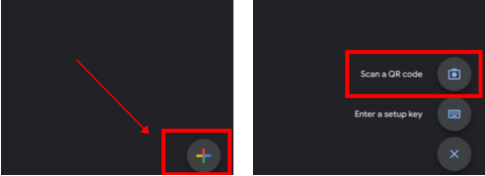
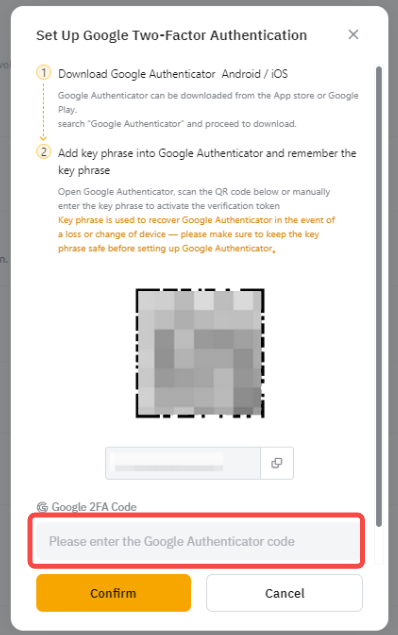
Step 5: Scan the QR code and a 6 digit 2FA code will be randomly generated inside your Google Authenticator APP.
Step 6: Write down the Recovery Key Phrase (RKP). Store your RKP securely inside an encrypted cloud server or inside another secured device.
Step 7: Key in the 6 digit code generated in your Google Authenticator and click Confirm.
You have successfully binded your Google Authenticator to your account.