Here's a step-by-step guide that helps you go through the whole process — create, terminate, modify parameters and share your DCA bot — to make your first DCA trade easier.
Create a DCA Bot
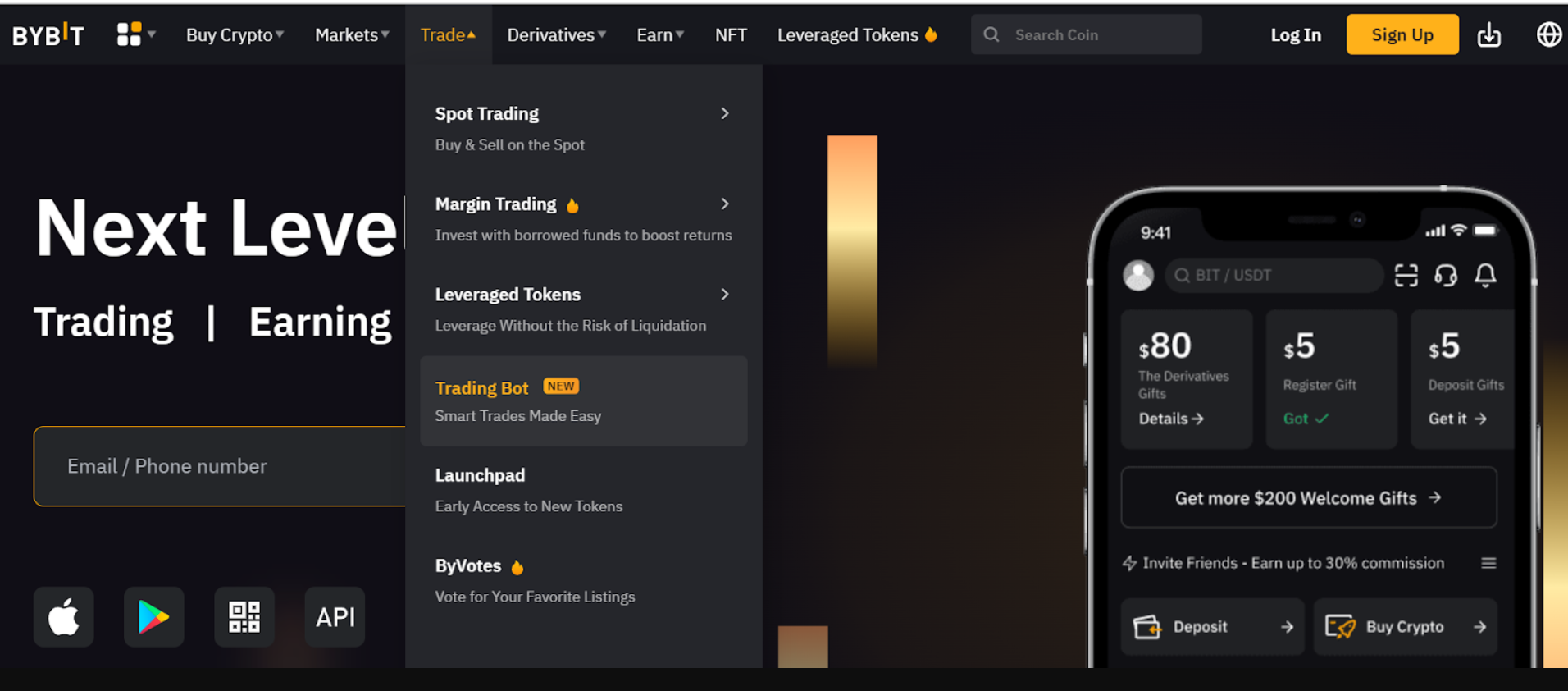
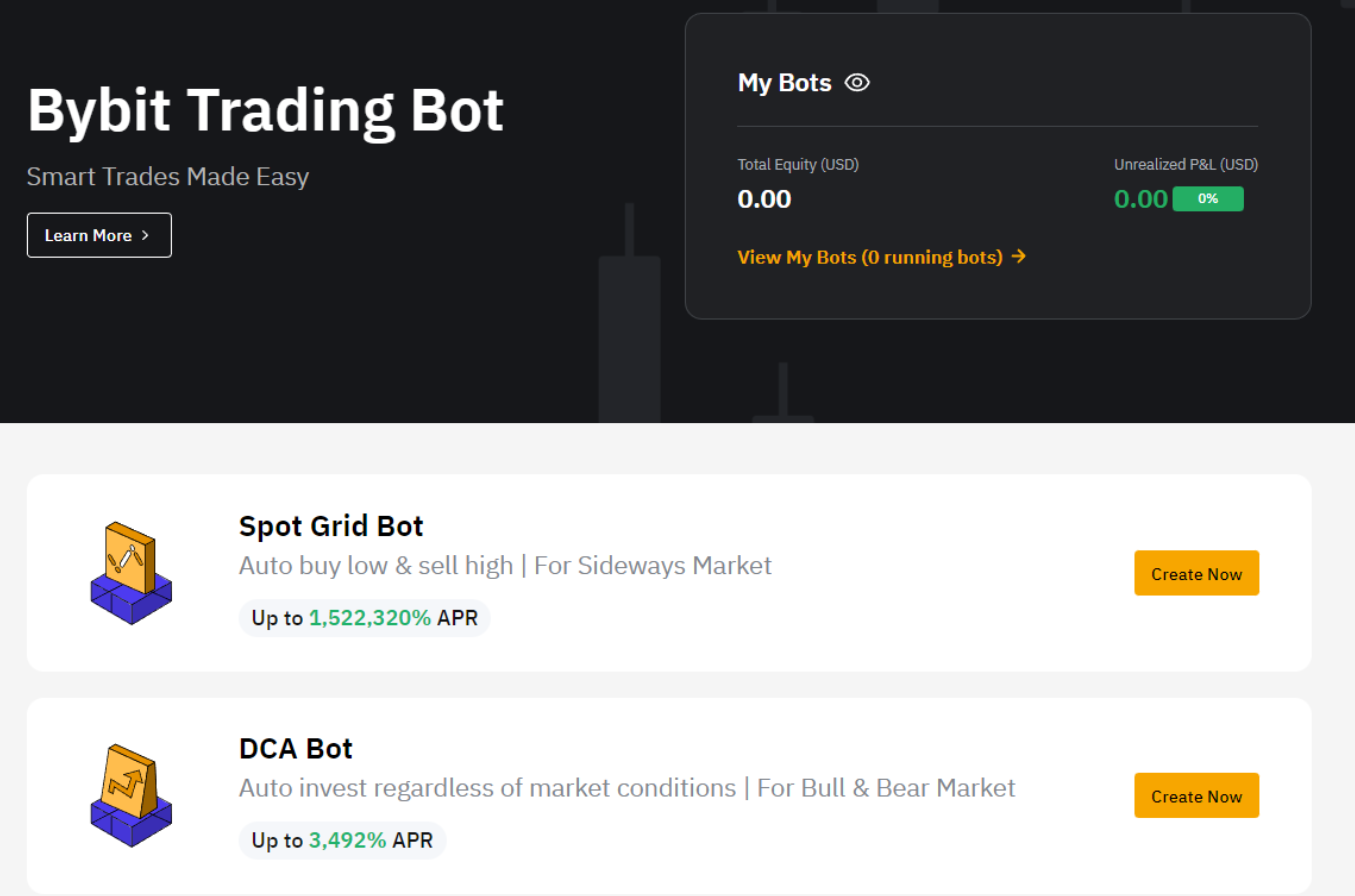
Step 1: Please click on Trade → Trading Bot in the navigation bar to enter the Bybit Trading Bot page.
Step 2: Create your DCA bot by clicking on Create Now to go to the Create DCA Bot page.
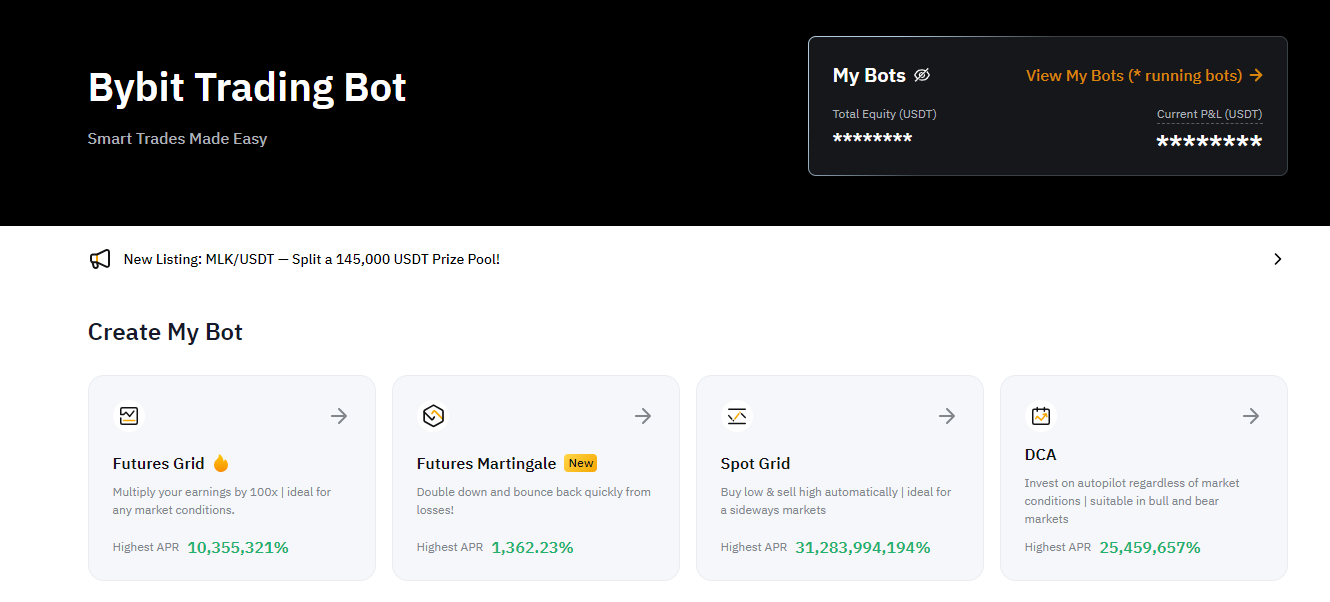
If you've previously created Bybit trading bots (Spot Grid Bot or/and DCA Bot), you can view the Total Equity (USD) and Unrealized P&L (USD) under My Bots in the upper right corner of the Bybit Trading Bot page.
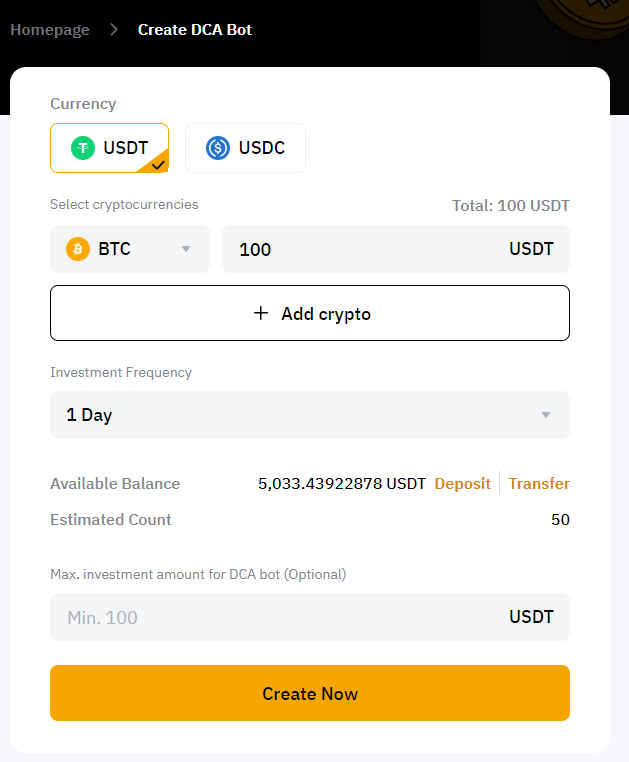
Step 3: Create your DCA bot with the following parameters:
a. Currency: Select the coin* you’re investing in
*Please note that once you select a coin — USDT or USDC, all transactions will be paid in the selected coin.
b. Select Cryptocurrencies: Select the coin you wish to purchase* and enter the corresponding investment amount
* You can select up to five coins for a DCA bot by clicking on Add Crypto
c. Investment Frequency: Set your preferred investment frequency
d. Max. investment amount for DCA bot (Optional): Enter the maximum investment amount* that a DCA bot will invest
* • Please ensure that the maximum investment amount you enter must be greater than the total investment amount.
• If the total investment amount triggers the maximum investment amount, the DCA bot will automatically terminate and all assets will be transferred to your Funding Account.
Explanation of Other Parameters
-
Total: Total investment amount per purchase
-
Estimated Count: Estimated number of investments = Available balance in the current funding account / total investment amount per purchase
Then, click on Create Now.
Note: Each fixed investment amount is subject to the minimum and maximum order value per transaction in the Spot market. For more information, please refer to Bybit Spot Trading Rules.
Tip: You can check the available balance in your Funding Account in the Available Balance section. Based on the available balance in your Funding Account, the system calculates an estimated auto-purchase count. If you need to transfer funds to your Funding Account, please click on Transfer.

Step 4: Please double-check the DCA bot information you’ve created, and then click on Confirm to start trading.
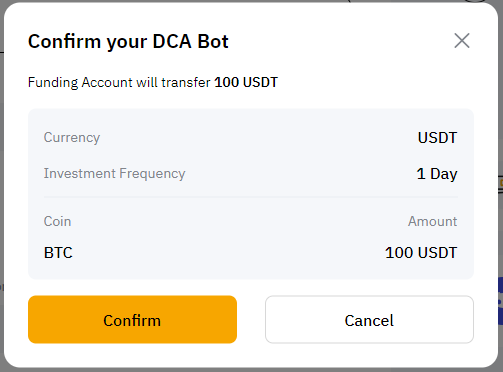
Your DCA bot has successfully been created!
Please note that your first DCA investment starts when you successfully create a DCA bot.
After you click on Confirm, the page will automatically redirect to My Bots for you to view your active DCA bots.
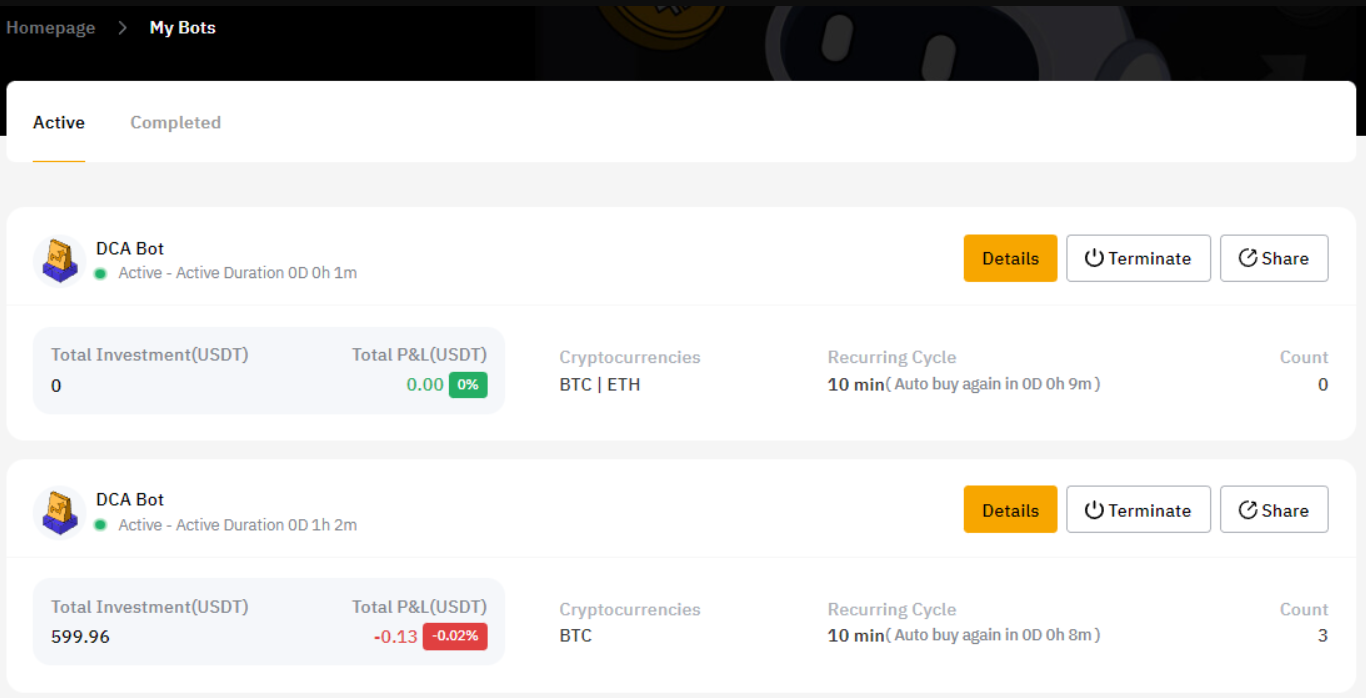
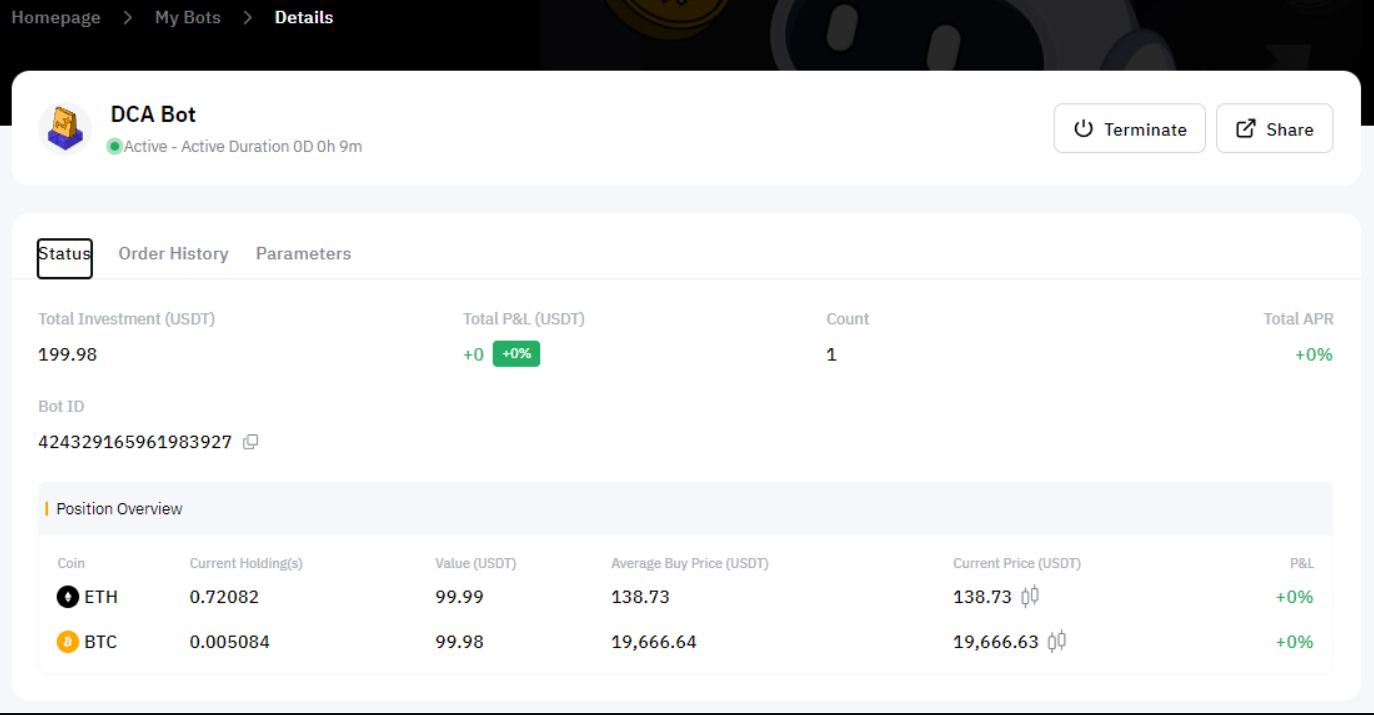
You can click on Details in the upper right corner of the DCA bot you want to view to explore more information, including Position Overview, Total APR, Avg. Price, Executed Quantity and more.
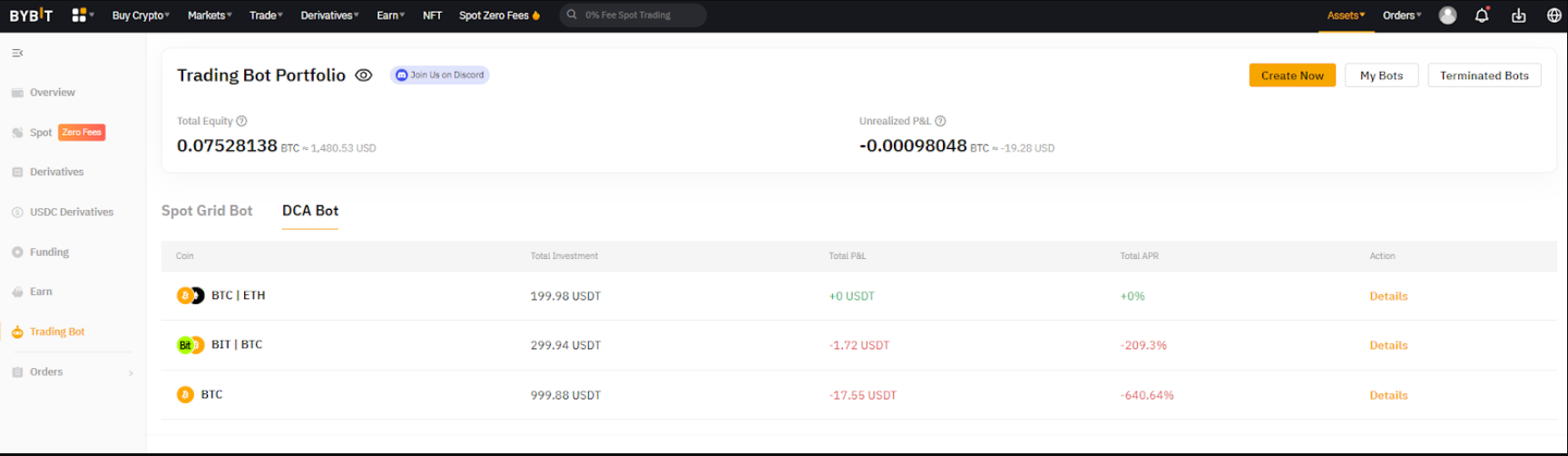
Alternatively, you can view the details of your running DCA bots — Coin, Total Investment, Total P&L and Total APR — under DCA Bot on the Trading Bot Account Assets page. On the Assets page, you can view the Total Equity and Unrealized P&L of your trading bots (Spot Grid Bot and/or DCA Bot).
Modify DCA Bot Parameters
Step 1: Click on View My Bots under My Bots in the upper right corner of the Bybit Trading Bot page. Then click on Details in the upper right corner of the DCA bot whose parameters you want to modify.
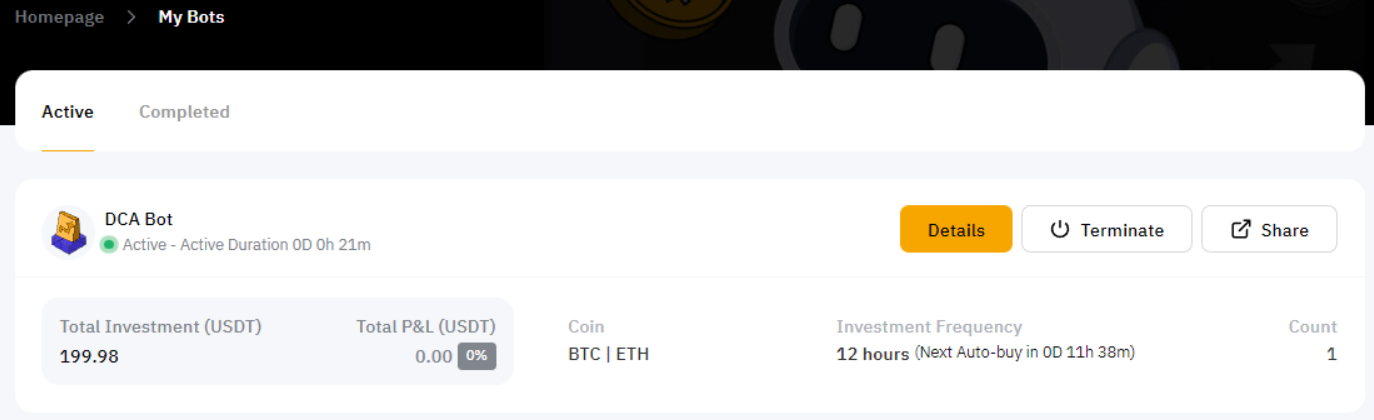
Step 2: Select Parameters and click on Modify.
Step 3: You can modify the following parameters according to your preference:
-
Investment Frequency
-
Total Investment Amount
-
Max. investment amount for DCA bot (Optional)
Then, click on Save.
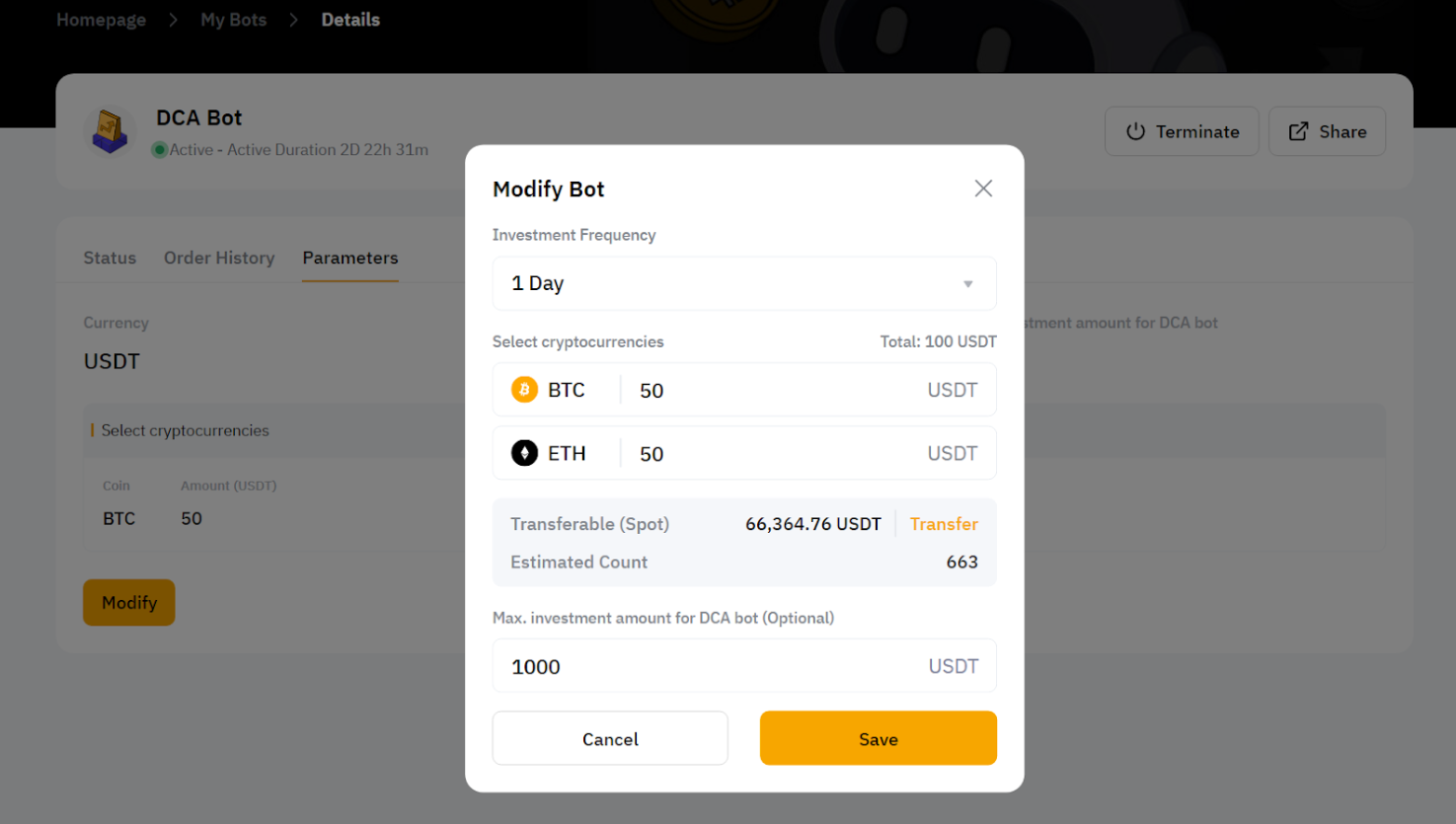
Your DCA bot has modified parameters!
Notes:
— The new DCA trading strategy will take effect immediately after the parameters are modified and successfully saved.
— The selected coins for each bot cannot be modified.
Terminate a DCA Bot
Step 1: Please click on View My Bots under My Bots in the upper right corner of Bybit Trading Bot to enter the My Bots page.
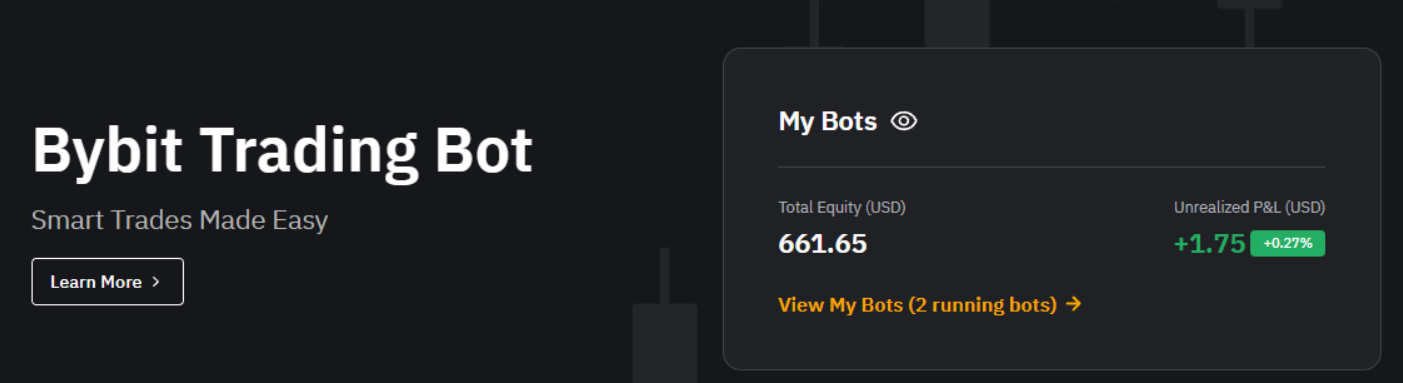
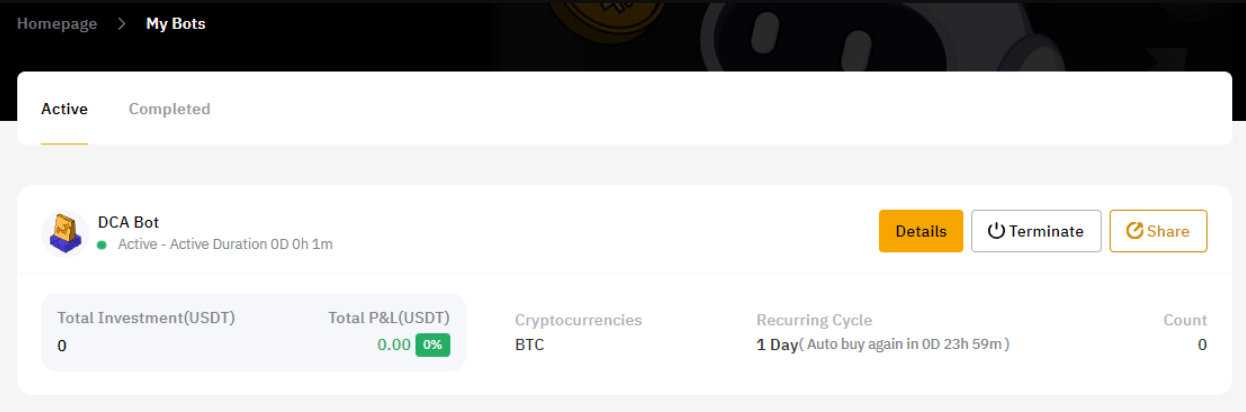
Step 2: Click on Terminate in the upper right corner of the DCA bot column to close.
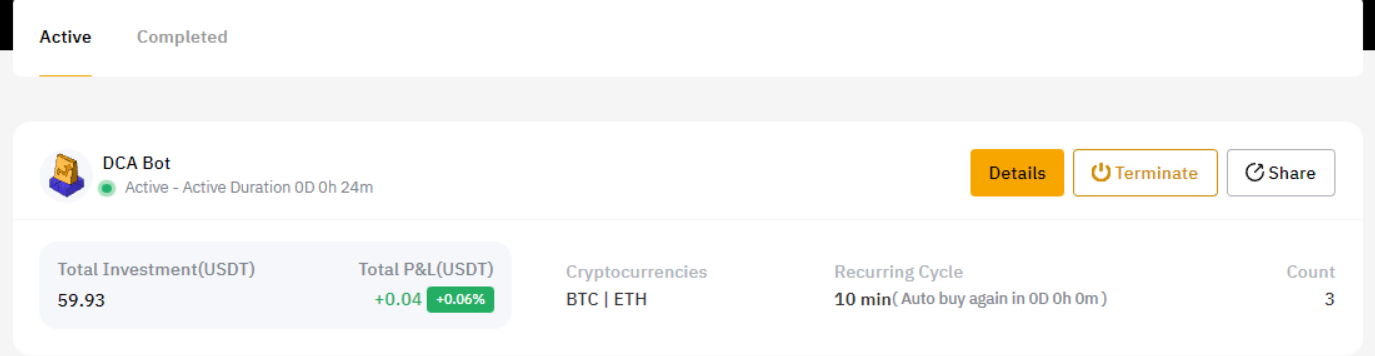
Step 3: Choose one of the following processing methods.
Taking USDT as an investment coin for example:
- Currently holding coin(s)
- Investment Coin — USDT or USDC
- MNT
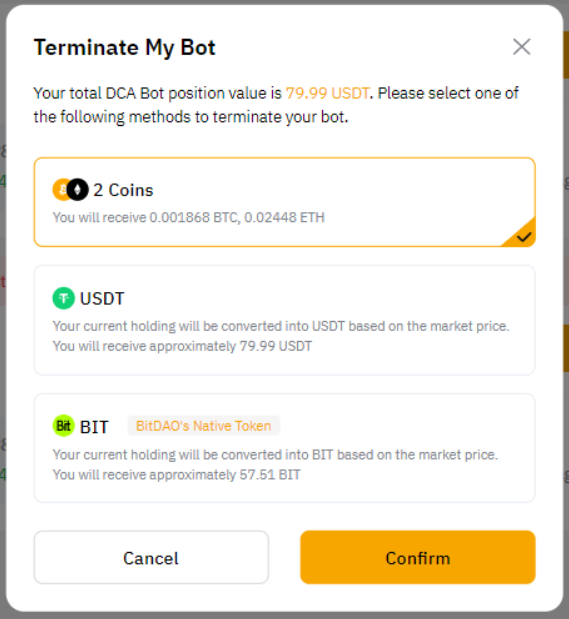
Note: Exchanges between coins will be based on the market price, and the corresponding Spot fee will be charged. If the direct exchange between the two tokens isn’t supported, the holding coins will be converted into USDT first, which may involve two trading fees.
Step 4: Click on Confirm.
After successful termination, your funds will automatically be transferred back to your Funding Account.
Share a DCA Bot
Step 1: Please click on View My Bots under My Bots in the upper right corner of Bybit Trading Bot to enter the My Bots page. Then, click on Share in the upper right corner of the DCA bot column to share.
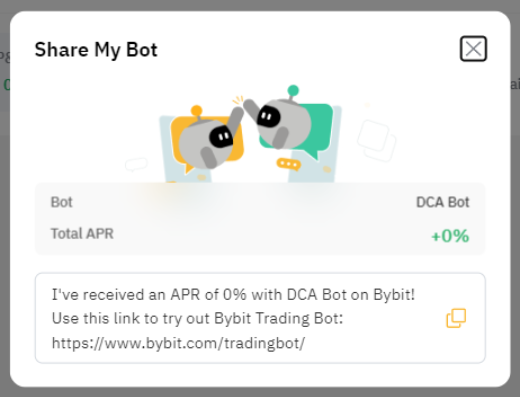
Step 2: Click on the copy icon to share the Bybit Trading Bot page URL with your friends.
Note: Currently, DCA bots do not support Copy Trading.